Before you agree
Compare the actual items.
Look up supported values and variants, build both sides of a trade and inspect available history. Value, RAP and estimated money keep their own meaning.
W8RLD / W8RLD Client Paid access planned
For traders who want a research workspace
W8RLD Client is a workspace inside Discord Desktop on Windows. Look up Adopt Me, MM2 and Limiteds, compare an offer, and keep your holdings, transactions and price targets together.

Search the Client catalog, choose the exact game and variant, then inspect its supported value.
Add exact items and quantities. Review the native totals before deciding on an offer.
Your recorded cost remains distinct from current estimates.
After your trade, record the items and actual cost in your transaction log. You control what is saved.
Step 1 of 3: Find the exact item
Everyday uses
Before you agree
Look up supported values and variants, build both sides of a trade and inspect available history. Value, RAP and estimated money keep their own meaning.
After a trade
Record holdings and transactions, review acquisition lots and swaps, and distinguish your recorded costs from current estimates. Manual Robux sales have their own transaction record.
Between sessions
Save research and set explicit price targets against supported observations while W8RLD is open. Watching an item alone does not create a price alert.
From question to decision
Find an exact item and variant.
Review both sides and their basis.
Keep the result in your own trade log.
A concrete example
Compare the exact items and quantities, inspect their value basis, then keep your own record of the result.
Trade research / Limiteds
Compare by date. Keep RAP and money separate.
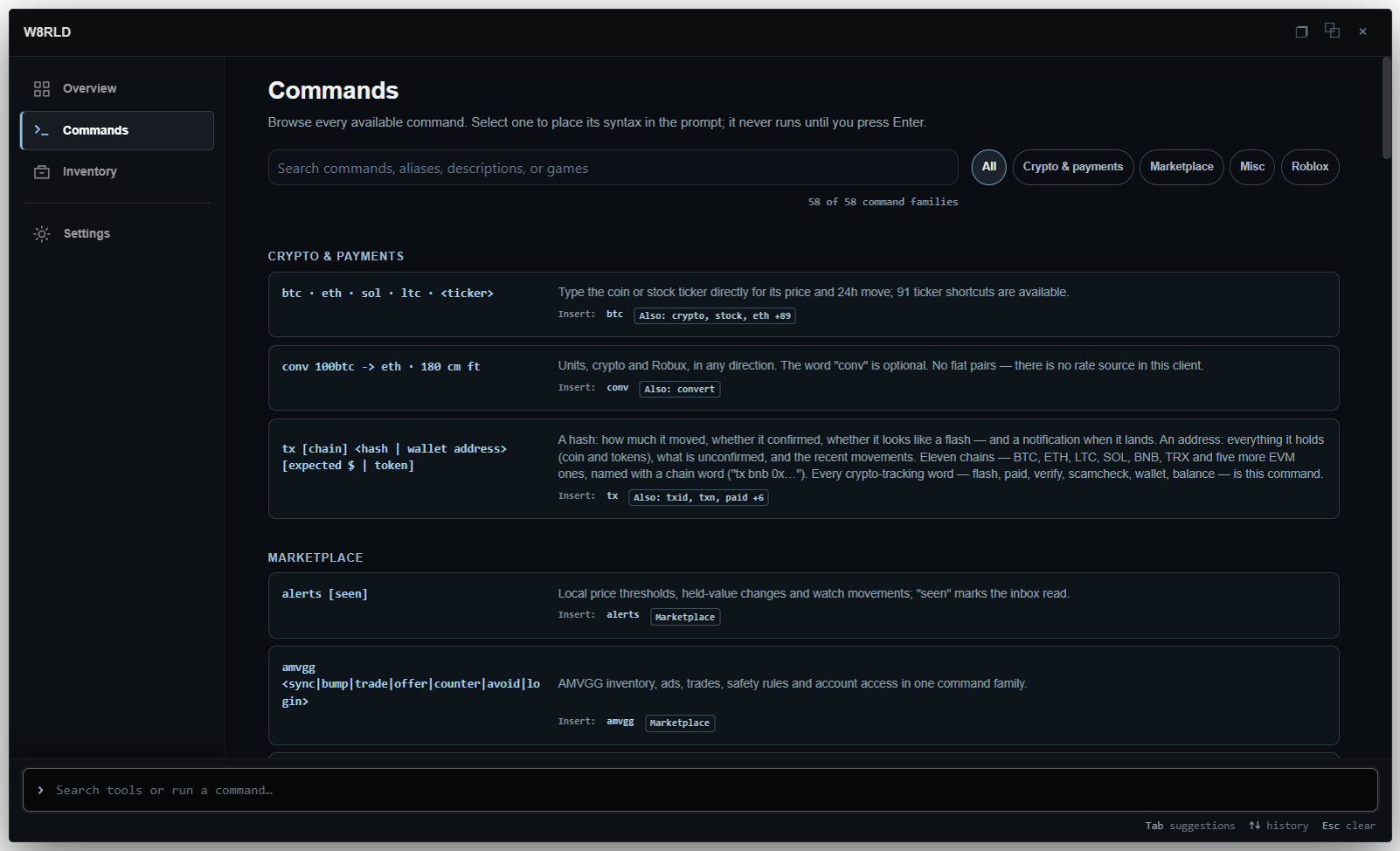
Inside the product
Choose the games you use in Settings → Games. Hiding a game preserves its inventory, history and rules; you can show it again later.
Available tools include dated Limited Value comparisons, portfolio views, saved research, and item or stock-sheet exports from recorded inputs. Historical RAP and missing source data stay unavailable.
Listing & Store supports preparation and review. Store dispatch is paused; these pages do not promise automatic publishing or repricing.
Private Windows build
Public downloads and checkout are not open. Existing approved builds use account, license and device verification. Free companions do not include Client access.